
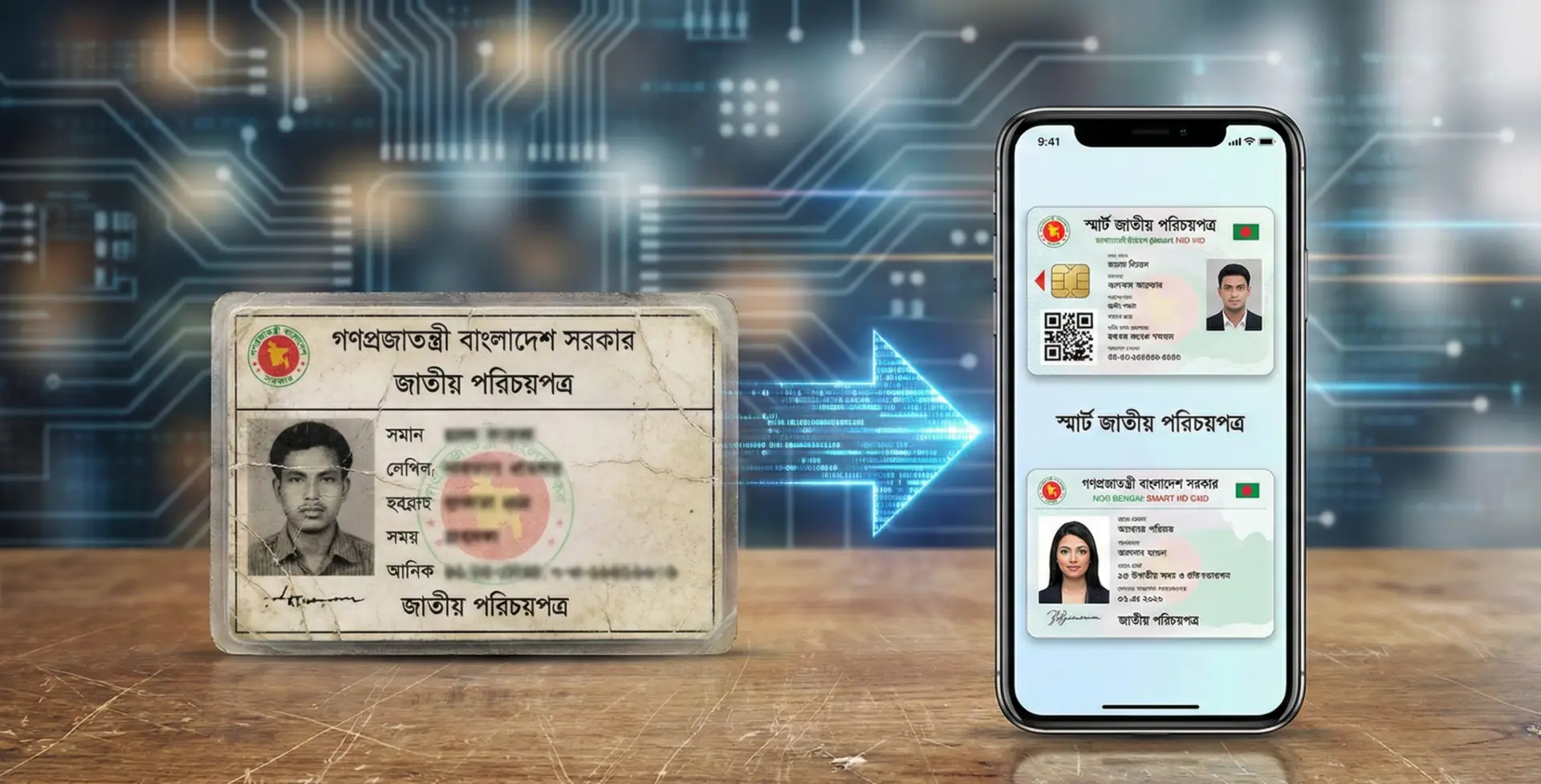
Getting your identity verified online can sometimes feel like a massive roadblock. If you are living in Bangladesh and still carrying the old analog National ID card, you probably know exactly what this struggle feels like. Many online platforms, social media networks, and digital services now require a highly clear, modern smart card format to approve your accounts. But what happens if you have not received your physical smart card from the government yet?
You might think you are stuck, but there is no need to worry. You can actually create a clean, highly readable digital layout of a smart NID using your existing analog card details. The entire process takes just about five minutes. Today, I am going to walk you through the exact steps so you can get past those annoying online verification hurdles smoothly and get back to your real work.
Understanding the Verification Struggle
Before we get into the tutorial, it helps to understand why this problem exists in the first place. Whether you are a content creator trying to unlock Facebook monetization features, a freelancer setting up payment gateways, or an affiliate marketer applying for programs, identity verification is a mandatory step. These global platforms rely heavily on automated systems and artificial intelligence to scan the documents you upload.
The old analog laminated ID cards often cause problems for these automated systems. The ink might be faded, the background pattern can interfere with text recognition, and the overall layout is outdated compared to global standards. When an automated system cannot clearly read your date of birth or your name, your application gets rejected automatically. The digital smart card format solves this issue. It presents your personal information in a standardized, machine friendly way with crisp text and a clean layout. By converting your details into this digital format, you dramatically increase your chances of passing automated verification checks on the first try.
A Very Important Disclaimer
Before we proceed with the steps, we need to have a serious conversation about how to use this tool responsibly. The method we are discussing is strictly for creating a digital layout to help with basic online verifications where a clear photo format is required.
This digital copy is absolutely not a substitute for a real, government issued physical smart card. It is simply a formatting tool. You must never use this generated image for official legal documents, physical banking needs, travel, or any illegal activities. Online platforms simply want to verify that you are a real person with a valid identity. Always input your genuine, truthful information exactly as it appears on your government records. Using fake names or fake identification numbers is illegal and will result in permanent bans from the platforms you are trying to use.
What You Need to Get Started
You do not need any complicated software or advanced computer skills to do this. You simply need your smartphone, a stable internet connection, and your old analog NID card. Take a moment to find your old card and make sure you can clearly read all the information printed on it. If you have those things ready, we can begin.
Step 1: Preparing Your Portrait Photo
The very first step happens right inside your phone gallery. Take a clear, well lit photograph of the front of your old analog NID card. Once you have that photo, open it in your phone default image editor.
You need to crop the portrait photo of yourself directly from that ID card image. Carefully adjust the crop borders so they wrap tightly around your face and shoulders, very similar to how a standard passport photo looks. Make sure the edges are clean and you are not including any of the text or background patterns from the ID card. Take your time with this step. A clean, perfectly cropped photo is the secret to making the final digital card look authentic and professional. Once you are happy with the crop, save this new image to your phone gallery.
[* INSERT IMAGE 2 (Cropping Photo on Smartphone Screen) HERE *]
Step 2: Finding the Correct Online Generator
Now it is time to use the internet. Open your preferred web browser on your smartphone. Google Chrome is highly recommended for this process because it is fast and reliable. Tap on the search bar and type the word GAMITISA. Hit search and carefully look at the results.
You want to click on the very first website that appears in the search results. This website hosts a variety of helpful online formatting tools. Once the homepage fully loads, look around for a button or menu option labeled Browse Tools and click on it. This will take you to a new page with several different categories. Look for the option that says All Categories and tap it, then select Generator from the drop down list.
Inside this generator section, scroll down until you find a specific tool named Smart NID Card Maker. Click on this tool to open the data entry form.
Step 3: Entering Your Personal Data Accurately
This is the most critical part of the entire process. You must be extremely careful here. You need to enter your details exactly as they appear on your official analog card. A single spelling mistake can cause your online verification to fail later on.
First, take a quick second to read the disclaimer provided on the website. After that, begin with the first text box labeled Name in English. Type your full name precisely. Next is the Date of Birth section. Use the calendar drop down to select your exact day, month, and year of birth. It is crucial that this matches your real records.
Following that, you will see a box for your NID number. Enter your 10 digit smart NID number if you have it memorized or recorded. If you only have the old 13 digit number, be sure to use the standard regional conversion rules (which usually involves adding your four digit birth year to the beginning) or input the exact number required by the platform you are verifying for.
Continue down the form. You will need to type your Name in Bangla. Then, carefully type your Father Name and Mother Name, both in Bangla. Take your time with the Bangla keyboard layout to ensure there are no spelling errors. Finally, you will reach the signature box. Type your full name in English here. The website will automatically convert this typed text into a realistic looking signature on the final digital card.
Before moving to the next step, stop and review every single box you just filled out. Double check the spellings, the dates, and the numbers. Accuracy is your best friend here.
[* INSERT IMAGE 3 (Webpage Form Filling with Dummy Data) HERE *]
Step 4: Uploading Your Photo and Generating the Layout
Scroll down past the text boxes until you find the photo upload section. Tap the upload button. Your phone will open your gallery or file manager. Search for the tightly cropped portrait photo you saved back in step one and select it. Wait a moment for the image name to appear on the screen, confirming it has been attached.
Once all your true information is filled out and your photo is uploaded, look for the brightly colored Create Card button at the bottom of the form. Tap it once.
The website will now process your information. It usually takes just a few seconds. The tool takes your text and your photo and maps them perfectly onto a high resolution digital template of a smart card. Once it finishes processing, a success message will appear on your screen.
Step 5: Downloading and Reviewing Your New Digital Card
Right below the success message, you will see an option to download the final image. Click the download button and save the file to your device.
Open your phone gallery and open the newly downloaded image. You will likely be amazed at the difference. Compare it side by side with your old analog card. The digital layout is incredibly crisp. The date of birth, which is the most important detail for age verification, is large and clearly visible. Your photo sits perfectly within the designated frame without any awkward borders. The signature looks completely natural. The text is sharp, and the background colors are accurate. It looks exactly like a pristine, digital version of a real smart card.
[* INSERT IMAGE 4 (Split-screen Comparison of Old Faded Card vs New Sharp Digital Card) HERE *]
Because the quality is so high, no automated system will struggle to read the text. It looks incredibly authentic and is perfectly formatted for digital submission.
Safe Practices for Digital Identity Management
Now that you have this clear digital file, you are ready to tackle those verification requests. When a platform asks for proof of identity, you can confidently upload this clear image. Their automated review systems will scan the sharp text, verify your name and date of birth instantly, and likely approve your account much faster than before.
However, you must treat this digital file with respect. Because it contains your real, sensitive personal information, keep it secure. Do not share this image publicly on social media. Do not send it to unverified individuals in chat messages. Only upload it to trusted, secure portals like the official verification pages of major tech companies.
Navigating online platform requirements can be frustrating, especially when document standards shift faster than government processing times. By taking a few minutes to format your ID correctly using these simple tools, you save yourself the massive headache of dealing with rejected applications, delayed payments, and endless support tickets.
Have you tried this method for your own verification needs yet? Let me know in the comments if it helped you get your accounts approved faster.